
At some point, your team needs one organized system for communication, documents, meetings, file storage, scheduling, and collaboration. That is where Google Workspace becomes useful.
Beginner’s Guide to Google Workspace for Businesses
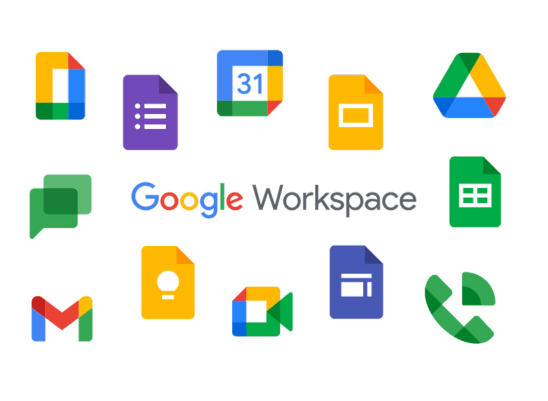
Google Workspace combines familiar tools such as Gmail, Drive, Docs, Sheets, Slides, Meet, Chat, Calendar, and admin controls into one business productivity environment. Google’s official Workspace Learning Center explains that teams can use Workspace apps such as Gmail, Docs, and Drive to collaborate with video meetings, chat, shared files, and online documents. (support.google.com)
For small businesses, the value is not simply having Google apps. The value is having a shared operating system for work.
Why Google Workspace Matters for Businesses
Many small businesses start with personal Gmail accounts because they are free and familiar.
That works at the beginning. But as the business grows, personal accounts create problems. Staff use private emails for client work. Documents remain with employees after they leave. Proposals are saved in different places. Meeting links are shared manually. Nobody knows which document is final.
Google Workspace helps solve these problems by giving the business centralized accounts, shared files, collaboration tools, and administrator controls.
Google’s Workspace pricing page shows that Workspace plans include tools such as Gmail, Drive, Meet, Chat, Calendar, Docs, Sheets, Slides, and security features depending on the plan. Businesses should compare features carefully before choosing a subscription because storage, meeting limits, security options, and admin controls vary by edition. (workspace.google.com)
1. Gmail: Professional Business Email
Gmail inside Google Workspace allows your business to use a professional email address such as:
This looks more credible than using a personal address for serious business communication.
Google’s guide on what you can do with Gmail in Workspace explains that Gmail can support email communication, search, labels, integrated Meet access, and workplace collaboration features. (support.google.com)
For a business, Gmail should be organized with labels such as:
- New Leads
- Clients
- Suppliers
- Invoices
- Follow Up
- HR
- Partnerships
- Support
This helps your team avoid missed opportunities. A client quotation should not disappear under newsletters and promotional emails.
2. Google Drive: Central File Storage
Google Drive is where your business stores files.
But Drive should not become a digital dumping ground. Use it as a structured business archive for proposals, contracts, invoices, photos, reports, staff documents, marketing assets, and client files.
Google’s Drive Help guide explains that users can upload, create, organize, share, and search files in Drive. For businesses, the important word is organize. (support.google.com)
A simple Drive structure could include:
- Admin
- Finance
- Clients
- Marketing
- Sales
- Operations
- HR
- Projects
- Legal
- Archive
This makes files easier to find and reduces confusion when the team grows.
3. Shared Drives: Company-Owned Documents
Shared drives are especially important for businesses using Google Workspace.
Google explains that in shared drives, files belong to the team instead of an individual user. If a staff member leaves and their account is removed, files in shared drives remain available to the organization. (support.google.com)
This matters because business documents should not depend on one employee’s personal account.
Use shared drives for:
- client project files
- company policies
- finance records
- marketing assets
- board documents
- HR records
- legal documents
- templates
For growing SMEs, shared drives protect continuity. The business keeps its documents even when people change.
4. Google Docs: Real-Time Document Collaboration
Google Docs allows teams to write, edit, comment, and collaborate on documents in real time.
Instead of sending five versions of the same proposal by email, your team can work on one document together. Managers can comment. Staff can suggest edits. Partners can review. Everyone sees the latest version.
Google’s guide on what you can do with Docs explains that Docs supports document creation, sharing, collaboration, comments, and productivity workflows. (support.google.com)
Use Docs for:
- proposals
- reports
- meeting notes
- policies
- project briefs
- training materials
- partnership documents
- content drafts
For businesses, this reduces version confusion and keeps work transparent.
5. Google Sheets: Business Tracking and Reporting
Google Sheets is useful for lightweight business tracking.
Use it for:
- sales pipelines
- customer lists
- expense tracking
- project trackers
- inventory logs
- campaign reports
- staff schedules
- event budgets
- content calendars
A small business may not need expensive software immediately. A well-structured Google Sheet can track leads, follow-ups, payments, and project status until the business is ready for a full CRM or accounting system.
The danger is poor structure. Every Sheet should have a clear owner, purpose, date format, access setting, and update rhythm.
6. Google Meet: Professional Online Meetings
Google Meet helps businesses run video meetings with clients, staff, partners, suppliers, and remote collaborators.
Google’s Meet training and help page explains that Meet supports video meetings and can connect with Workspace tools such as Calendar and Docs, Sheets, or Slides for presenting. (support.google.com)
Use Meet for:
- sales consultations
- team meetings
- interviews
- training sessions
- client presentations
- project reviews
- board meetings
- remote support calls
For African and Cameroonian businesses working with diaspora clients, international partners, or remote teams, Meet helps reduce travel and coordination friction.
7. Google Calendar: Time and Meeting Control
Google Calendar helps your business organize appointments, deadlines, team meetings, launch dates, and project reviews.
A business should not manage important meetings only through memory or WhatsApp reminders.
Use Calendar for:
- consultation bookings
- recurring staff meetings
- payment deadlines
- campaign launch dates
- content publishing schedules
- client follow-ups
- training sessions
- project milestones
When Calendar is connected to Gmail and Meet, invitations, meeting links, reminders, and updates become easier to manage.
8. Google Chat: Internal Team Communication
Google Chat helps teams discuss work without turning every conversation into email.
Google’s guide on the integrated Gmail experience explains that Workspace users can use Gmail together with Chat, spaces, and Meet, depending on administrator settings. (support.google.com)
Use Chat spaces for:
- sales team updates
- project discussions
- customer support coordination
- content planning
- operations issues
- event planning
- leadership communication
This helps separate internal team discussion from client email. It also keeps work conversations searchable and easier to organize.
9. File Sharing and Permissions
Google Workspace is powerful because files can be shared easily. But easy sharing can become risky if the business has no rules.
Google’s guide on sharing files and folders in Drive explains that users can share files with colleagues or external collaborators, depending on organizational settings. (support.google.com)
Use access levels carefully:
Viewer: can read only.
Commenter: can review and comment.
Editor: can change the document.
Do not give edit access when someone only needs to read. Do not share sensitive finance, HR, legal, or client documents with “anyone with the link” unless there is a clear reason and policy.
10. Admin and Security Controls
A major advantage of Google Workspace is that the business can manage users centrally.
When someone joins, the admin creates an account. When someone leaves, the admin can suspend access, transfer files, and protect business data. This is much safer than letting staff use personal accounts for company work.
Google also provides guidance on Drive security, sharing controls, and account protection through its official Drive security help. These controls matter because business files often include contracts, customer records, invoices, internal plans, and confidential documents. (support.google.com)
At minimum, every business should:
- use strong passwords
- enable two-step verification
- avoid shared passwords
- remove former staff quickly
- review external file access
- control who can create shared drives
- train staff on phishing and suspicious links
Security is not only an IT issue. It is a business trust issue.

A Simple Google Workspace Setup Plan
Start with the basics.
First, create professional email accounts for key roles such as info, sales, support, admin, and finance.
Second, build a clean Drive structure before files become chaotic.
Third, create shared drives for company-owned documents.
Fourth, move recurring documents into Docs, Sheets, and Slides so teams can collaborate in real time.
Fifth, use Calendar and Meet for appointments and meetings.
Sixth, use Chat spaces for internal coordination.
Seventh, define file-sharing rules so sensitive documents are protected.
Finally, train your team. Tools do not organize a business automatically. People need habits.
Common Mistakes to Avoid
Do not let everyone create random folders.
Do not store company files only in personal Drive accounts.
Do not share passwords.
Do not use one email address for every department forever.
Do not give editing access to everyone.
Do not leave former employees with access.
Do not run meetings without Calendar invites.
Do not treat Drive as backup only. It should be your working file system.
Do not assume your team knows how to use Workspace properly just because they know Gmail.

Google Workspace Turns Tools Into Team Discipline
Google Workspace helps businesses communicate, collaborate, store files, manage meetings, and protect information in one connected system.
Gmail handles professional communication. Drive stores business files. Shared drives protect company ownership. Docs, Sheets, and Slides support real-time collaboration. Meet and Calendar organize meetings. Chat supports internal coordination. Admin controls protect access and security.
For a small business, the goal is not to use every feature at once. The goal is to build a cleaner way of working.
Start with email, file structure, sharing rules, meetings, and team training. Once those habits are strong, Workspace becomes more than software. It becomes the digital office where your business actually runs.