Best Video Editing Apps for YouTube Creators
The best video editing app is not always the most expensive one.
For YouTube creators, the right editor depends on what you create, what device you use, how often you publish, and how much control you need. A creator making daily Shorts on a phone does not need the same editing setup as a documentary creator, tech reviewer, podcast editor, gaming streamer, or business educator producing 20-minute tutorials.
Many beginners waste time switching between apps instead of learning one workflow properly. Your goal should be simple: choose an editing app that helps you publish consistently, improve quality, and match your channel format.
What YouTube Creators Should Look for in an Editing App
Before choosing software, ask what your channel actually needs.
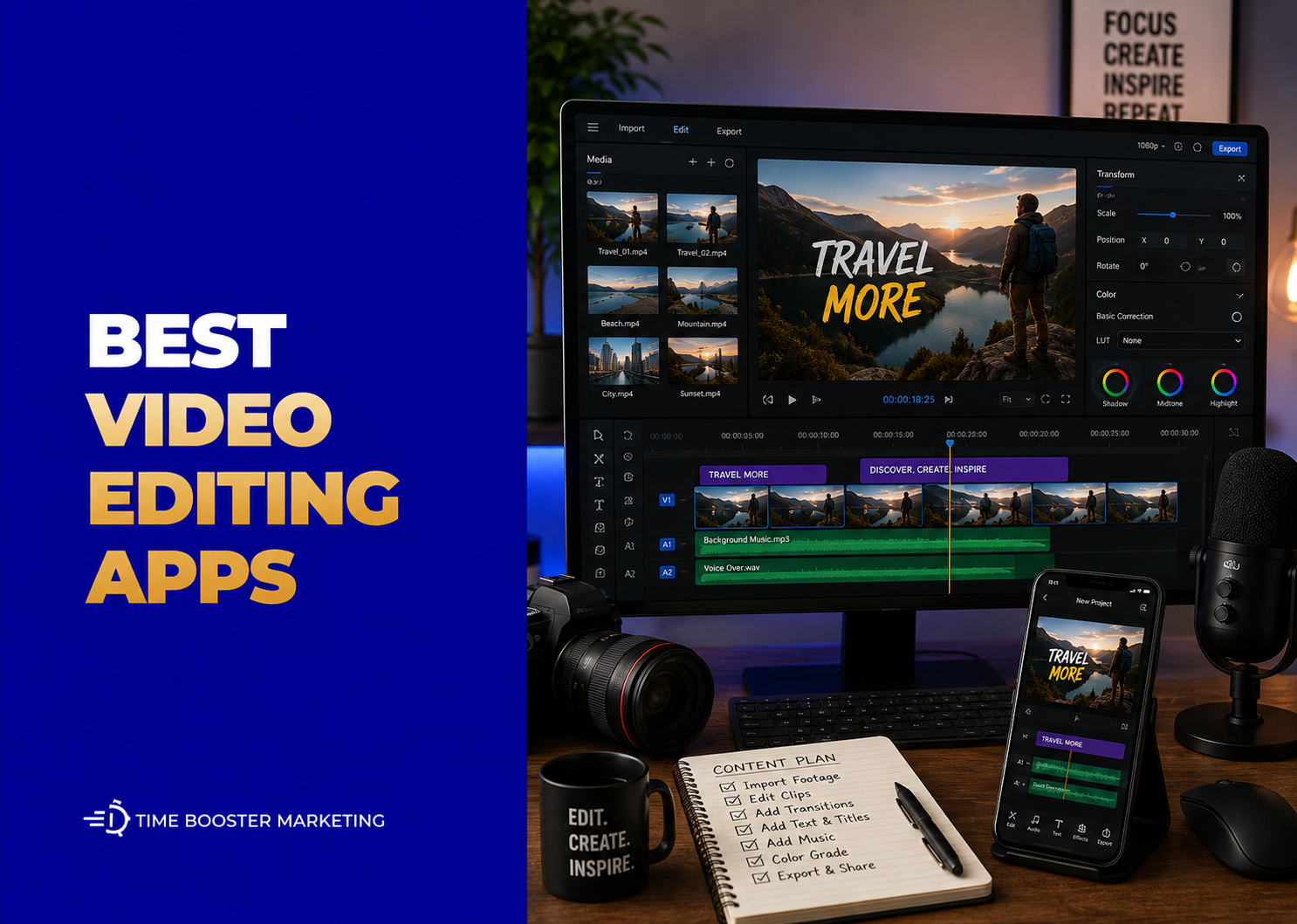
A good YouTube editing app should help you cut clips cleanly, improve audio, add captions, create vertical and horizontal exports, manage music, adjust color, add text, use transitions carefully, and export in good quality.
YouTube itself recommends creators focus on watchability, strong openings, clear storytelling, and audience retention, which means editing should support the viewer experience, not distract from it. You can use YouTube Studio Analytics to check whether viewers are staying, dropping off, or skipping parts of your videos after you publish.
The best editing app is the one that helps you improve the next video faster.
1. CapCut: Best for Shorts and Fast Social Video Editing
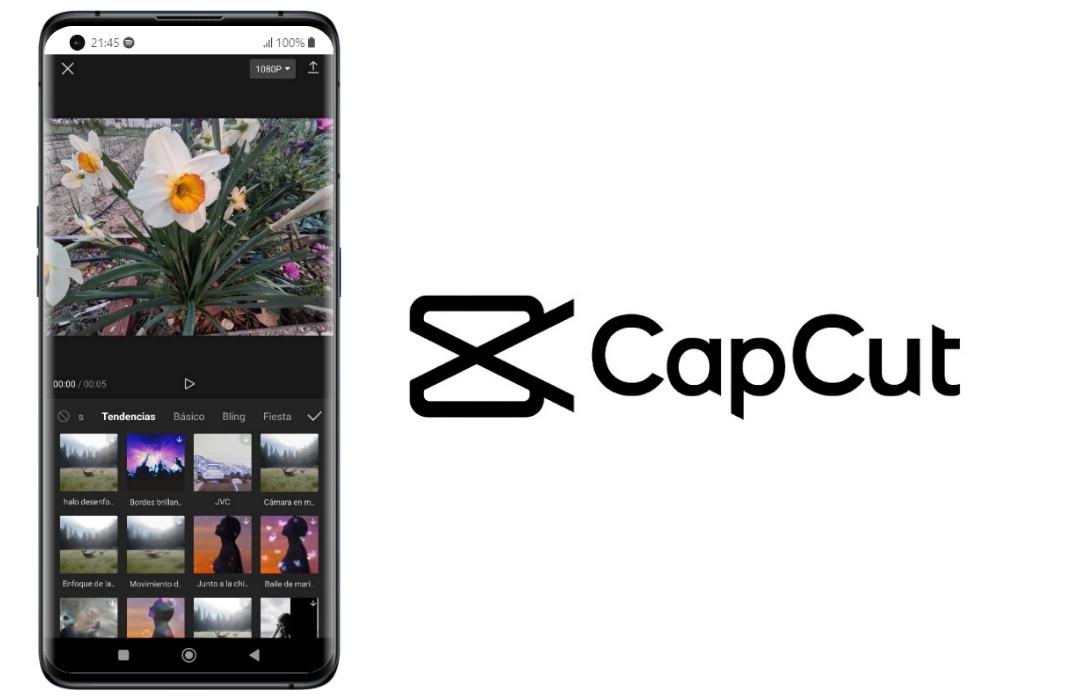
CapCut is one of the best editing apps for YouTube Shorts, TikTok-style videos, Instagram Reels, reaction clips, product videos, and quick creator content.
Its strength is speed. You can cut clips, add captions, use templates, apply effects, edit on mobile, desktop, or web, and create vertical videos without a heavy learning curve. CapCut’s official help pages explain that CapCut has Standard and Pro subscription options, with cross-platform editing on mobile, desktop, and web, while pricing can vary by region and platform.
CapCut is best for:
- YouTube Shorts
- quick tutorials
- talking-head clips
- product videos
- reaction content
- social media repurposing
- beginner creators
The downside is that many trending effects, templates, and advanced features may move behind paid plans. Also, overusing templates can make your content look generic.
Use CapCut if your priority is speed, captions, vertical video, and social-first editing.
2. DaVinci Resolve: Best Free Desktop Editor for Serious Creators
DaVinci Resolve is one of the strongest free desktop video editors available.
Blackmagic Design describes DaVinci Resolve as combining editing, color correction, visual effects, motion graphics, and audio post-production in one tool. Its free version supports most 8-bit video formats up to 60fps in Ultra HD, while the Studio version adds advanced AI, effects, noise reduction, Magic Mask, film grain, optical blur, and more.
DaVinci Resolve is best for:
- long-form YouTube videos
- documentaries
- interviews
- cinematic videos
- color grading
- professional editing practice
- creators who want to grow into advanced workflows
The downside is the learning curve. It also needs a capable computer, especially for 4K footage, effects, color work, and heavy timelines.
Use DaVinci Resolve if you want professional-level editing without starting with a monthly subscription.
3. Adobe Premiere Pro: Best for Professional Creator Workflows

Adobe Premiere Pro is one of the most widely used professional video editors for YouTubers, agencies, filmmakers, marketing teams, and media professionals.
Adobe describes Premiere as a powerful, customizable nonlinear video editor with a customizable timeline, shortcuts, and media management. Adobe’s plan comparison page says Premiere plans include the latest Premiere features and updates, Adobe Firefly creative AI, Frame.io for Creative Cloud, and Adobe Express Premium, with a 7-day free trial available.
Premiere Pro is best for:
- professional YouTube channels
- agencies
- client video work
- advanced editing workflows
- motion graphics with After Effects
- team collaboration
- brand content production
The downside is cost. It is subscription-based, and beginners may not need its full ecosystem immediately.
Use Premiere Pro if YouTube is part of a serious creative business, agency workflow, or professional content operation.
4. Final Cut Pro: Best for Mac-Based YouTube Creators

Final Cut Pro is a strong professional editor for creators who work inside the Apple ecosystem.
Apple says Final Cut Pro supports professional video creation across Mac and iPad, with advanced editing tools, effects, and Apple-designed performance. Apple Support also notes that Final Cut Pro for iPad requires a subscription and is a separate purchase from Final Cut Pro for Mac.
Final Cut Pro is best for:
- Mac users
- iPhone-to-Mac workflows
- vloggers
- filmmakers
- creators who want speed and professional control
- YouTubers who dislike monthly desktop subscriptions
The downside is ecosystem limitation. It is not for Windows users, and the iPad version is separate from the Mac version.
Use Final Cut Pro if you already use a Mac and want a fast professional editor that fits Apple devices well.
5. iMovie: Best Free Beginner Editor for Apple Users
iMovie is a simple, free option for creators using iPhone, iPad, or Mac.
Apple says iMovie lets users edit on the fly, create movies, use Storyboards, work with Cinematic mode videos, add titles and backgrounds, and edit on Mac or mobile devices. The App Store listing also describes iMovie as supporting 4K and HD movie creation, trailers, picture-in-picture, green screen effects, titles, transitions, and export for YouTube and other platforms.
iMovie is best for:
- absolute beginners
- simple vlogs
- school videos
- church announcements
- family-style storytelling
- basic business videos
- first YouTube uploads
The downside is limited advanced control. You may outgrow it once you need more complex timelines, advanced color work, better captions, or professional audio control.
Use iMovie when you need to start without fear.
6. VN Video Editor: Best Simple Free Mobile Editor Without Heavy Complexity

VN Video Editor is a useful mobile editor for creators who want a clean, straightforward editing experience without jumping immediately into complex software.
Its Google Play listing describes VN as an easy-to-use free video editing app with no watermark, track-style editing, keyframe adjustment, and precise rough-cut controls.
VN is best for:
- mobile creators
- vloggers
- Shorts creators
- lightweight YouTube videos
- creators who want a simpler interface
- phone-first editing workflows
The downside is that it may not be as feature-rich as CapCut, KineMaster, DaVinci Resolve, or Premiere Pro for advanced projects.
Use VN if you want a clean mobile editor that lets you publish without feeling overwhelmed.
7. KineMaster: Best Mobile Editor for More Control on Phone or Tablet
KineMaster is a mobile video editor for creators who want more control than basic phone editing apps.
KineMaster’s official feature page describes it as loaded with editing tools, while its App Store listing highlights AI auto captions, text-to-speech, AI voice, music match, magic removal, noise removal, vocal separation, AI tracking, AI upscaling, templates, 4K 60fps exports, and social media sharing.
KineMaster is best for:
- mobile YouTubers
- Android creators
- creators editing on tablets
- Shorts and long-form mobile workflows
- videos needing captions and layers
- social-first content creators
The downside is that premium features and watermark removal may depend on subscription access. The interface may also feel busier than VN for beginners.
Use KineMaster if your phone is your main studio and you want deeper editing control.
8. Wondershare Filmora: Best Beginner-Friendly Desktop Editor With AI Features

Wondershare Filmora sits between beginner tools and professional editors.
It is easier than Premiere Pro or DaVinci Resolve but more capable than basic editors. Filmora is useful for creators who want templates, effects, titles, transitions, screen recording, AI tools, and a more guided desktop editing experience.
Wondershare’s pricing pages list more than 100 advanced video editing features and AI credits, while its support documentation explains that AI features use credits to unlock or process AI functions inside Filmora.
Filmora is best for:
- beginner-to-intermediate YouTubers
- tutorial creators
- business channels
- educational videos
- creators who want templates
- editors who find Premiere too complex
The downside is that some AI features may depend on credits or paid access, and advanced professionals may eventually want more control.
Use Filmora if you want a friendly desktop editor with modern features and less technical pressure.
9. Adobe Premiere on iPhone: Best for Creators Already in Adobe’s Ecosystem
Adobe has also expanded Premiere into mobile.
Adobe announced Premiere on iPhone as a mobile editing app that lets creators start projects on the go and finish on desktop in Premiere Pro. This matters for creators who record on mobile but want the option to continue editing in a professional desktop environment later.
Premiere on iPhone is best for:
- mobile creators
- Adobe users
- creators who want mobile-to-desktop workflows
- social video editors
- vloggers and Shorts creators
The limitation is platform and workflow fit. It makes the most sense if you already use or plan to use Adobe tools.
Use it if you want mobile flexibility without leaving the Adobe ecosystem.
Desktop vs Mobile Editing: Which Is Better?
Mobile editing is better when speed matters.
Use mobile editing for Shorts, quick vlogs, social videos, behind-the-scenes clips, food content, event highlights, fitness videos, motivational content, church clips, and product demos.
Desktop editing is better when control matters.
Use desktop editing for long-form YouTube videos, tutorials, interviews, podcasts, documentaries, real estate videos, professional brand content, courses, and client work.
Many creators eventually use both. You can edit Shorts on CapCut or VN and use DaVinci Resolve, Premiere Pro, Final Cut Pro, or Filmora for longer videos.
Best Editing App by Creator Type
Beginner YouTuber
Start with CapCut, VN, or iMovie.
You need confidence, not complexity.
YouTube Shorts Creator
Use CapCut or KineMaster.
You need fast captions, vertical formatting, effects, and social publishing speed.
Long-Form Creator
Use DaVinci Resolve, Premiere Pro, Final Cut Pro, or Filmora.
You need timeline control, audio cleanup, better pacing, and repeatable editing structure.
Business or Educational Creator
Use Filmora, CapCut Desktop, DaVinci Resolve, or Premiere Pro.
You need clarity, clean cuts, captions, screen recordings, slides, and organized exports.
Professional Creator or Agency
Use Premiere Pro, DaVinci Resolve Studio, or Final Cut Pro.
You need advanced workflows, client-ready output, plugins, color, audio, media management, and collaboration.
A Practical Editing Workflow for YouTube Creators
A good app is only part of the workflow.
Start by organizing your footage into folders: raw video, audio, graphics, music, exports, thumbnails, and project files.
Then edit in stages.
First, cut mistakes and dead space.
Second, arrange the story.
Third, improve audio.
Fourth, add captions, text, graphics, and B-roll.
Fifth, adjust color and brightness.
Sixth, export in the right format.
Seventh, upload and study retention in YouTube Studio.
If viewers leave early, your problem may be the hook. If they skip sections, your pacing may be weak. If they stop watching during long explanations, your edit may need tighter cuts, examples, or visuals.
Common Mistakes to Avoid
Do not choose a complex editor before you can finish simple videos.
Do not overuse effects.
Do not copy trendy editing styles that do not fit your niche.
Do not ignore audio quality.
Do not edit only for beauty; edit for retention.
Do not export huge files without understanding your settings.
Do not keep changing apps every week.
Do not pay for software before free tools limit your growth.
For many African creators, the phone is the first production studio. That is fine. A clear video with strong audio, good lighting, useful content, and tight editing can outperform an expensive camera video with weak storytelling.
The Best Video Editing App Is the One You Can Use Consistently
CapCut is excellent for Shorts and fast social videos. DaVinci Resolve is the strongest free desktop option for serious creators. Premiere Pro is best for professional Adobe workflows. Final Cut Pro is powerful for Mac users. iMovie is ideal for Apple beginners. VN is simple and clean for mobile creators. KineMaster gives strong mobile control. Filmora gives beginners a friendly desktop path with AI features.
Do not choose based only on what famous creators use.
Choose based on your device, budget, content format, publishing schedule, and learning capacity. A simple editor used consistently is better than a professional editor you never master.
The real goal is not to have the best software. The real goal is to publish better videos, learn from audience behavior, and improve every upload.