
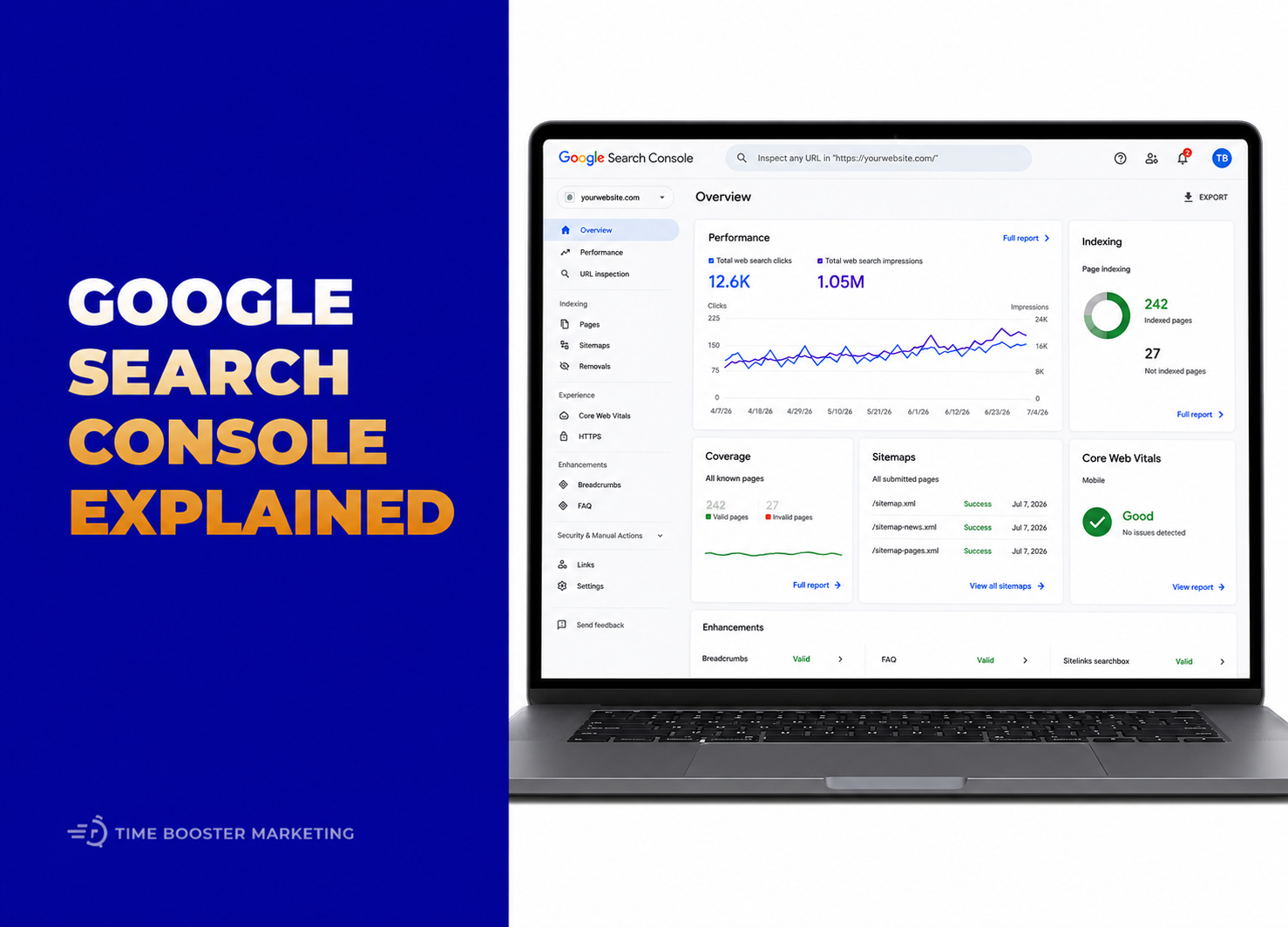
Complete Google Search Console Guide for Indexing, Reports and Technical SEO
Google Search Console is one of the most important SEO tools a business can use.
It does not replace Google Analytics, keyword research, content strategy, or technical audits. But it gives you something very valuable: direct visibility into how Google sees your website.
Google’s own Search Console overview explains that the tool helps website owners measure Search traffic, monitor performance, fix issues, and improve visibility in Google Search. For business owners, this means you no longer have to guess whether Google is finding your pages, showing them to searchers, or detecting technical problems. (Google)
What Google Search Console Actually Does
Google Search Console helps answer four important questions:
Can Google find my website?
Which pages are indexed?
What search queries show my pages?
What technical issues may be limiting performance?
Google’s basic Search Console usage guide recommends checking Search Console after important site changes and using tools such as URL Inspection to test whether Google can access pages. This makes Search Console useful for website launches, redesigns, new blog posts, service pages, SEO campaigns, and technical troubleshooting. (Google Support)
For a business, Search Console is not only an SEO dashboard. It is a warning system, performance report, indexing monitor, and search visibility tool.
Step 1: Verify Your Website
Before Search Console can show data, you must verify ownership of the website.
Verification proves that you are authorized to view Search data and manage settings. Depending on your website setup, verification may happen through a domain record, HTML file, HTML tag, Google Analytics, Google Tag Manager, or your hosting provider.
For most businesses, domain verification is the strongest option because it covers all versions of the site, including http, https, www, and non-www.
After verification, Search Console begins showing data, but reports may take time to populate. Do not panic if a new site shows little or no data at first. A website needs crawling, indexing, and search impressions before reports become useful.
Step 2: Understand Indexing
Indexing means Google has processed a page and stored it in the Google index, making it eligible to appear in Search results. Google’s Page Indexing report documentation explains that indexing happens when Google finds, crawls, processes, and indexes a page so it may appear in Google Search and other services. (Google Support)
This is critical.
A page can exist on your website and still not appear in Google if it is not indexed.
Common reasons include:
- Google has not discovered the page yet
- The page is blocked by
robots.txt - The page has a
noindextag - The page returns an error
- The content is too thin or duplicated
- Google chose a different canonical URL
- The page is discovered but not currently indexed
A business website should regularly check whether important pages are indexed, especially the homepage, service pages, product pages, location pages, blog articles, pricing pages, and contact pages.
Step 3: Use the Page Indexing Report
The Page Indexing report shows which pages Google indexed and which pages were not indexed.
This report is useful because it separates normal exclusions from real problems. Not every excluded page is bad. For example, thank-you pages, duplicate filter pages, admin URLs, or intentionally blocked pages may not need indexing.
The danger is when important commercial pages are excluded.
If your “SEO Services in Cameroon” page, “Contact Us” page, or “WhatsApp Marketing Services” page is not indexed, customers may never find it through Google.
Google’s guide on checking whether Google found all your pages recommends using the Page Indexing report to see how many pages Google has tried to crawl and whether they were indexed. It also recommends using URL Inspection for individual page status. (Google Support)
Step 4: Inspect Important URLs
The URL Inspection tool shows what Google knows about one specific page.
Google’s URL Inspection tool guide explains that the tool can show index status, crawl information, sitemap discovery, canonical information, and whether a page has issues such as a noindex tag. (Google Support)
Use URL Inspection when you:
- publish a new page
- update important content
- fix an indexing problem
- change a page title or structure
- migrate URLs
- suspect Google is seeing an old version
- want to request indexing
Google’s guide on how to inspect and troubleshoot a single page also explains that the tool gives an overall verdict about whether a page is likely to appear in Google Search. (Google Support)
For practical SEO, URL Inspection is your first troubleshooting tool.
Step 5: Submit a Sitemap
A sitemap helps Google discover important URLs on your website.
Google’s Sitemaps report documentation says small sites of about 500 pages or fewer may not need a sitemap if every page can be reached through links from the homepage, but larger or newer sites can benefit from submitting one. (Google Support)
Most WordPress SEO plugins, Shopify sites, Wix sites, and modern CMS platforms can generate sitemaps automatically.
Common sitemap URLs include:
/sitemap.xml
/sitemap_index.xml
Submit your sitemap in Search Console under the Sitemaps report. Then check whether Google could read it successfully.
A sitemap does not guarantee indexing. It helps Google discover pages. The page still needs to be crawlable, indexable, useful, and technically accessible.
Step 6: Read the Performance Report
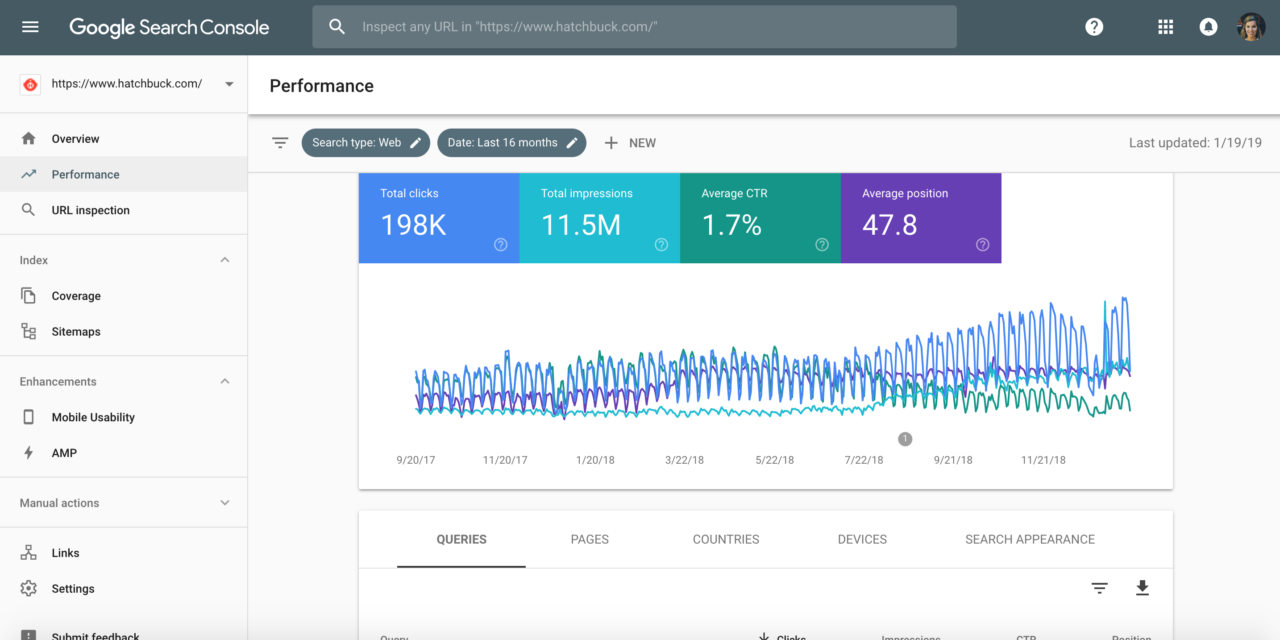
The Performance report shows how your website performs in Google Search.
Google’s guide on Search performance reporting explains that the report can show data such as impressions, clicks, search appearance, pages, countries, devices, and query filters. (Google Support)
The main metrics are:
Clicks: how many times users clicked your website from Google.
Impressions: how many times your site appeared in search results.
CTR: click-through rate, or the percentage of impressions that became clicks.
Average position: the average ranking position of your result.
Do not look at these numbers separately.
High impressions with low clicks may mean your title or meta description is weak. Low impressions may mean the page is not ranking for enough queries. Good clicks but poor business results may mean the page attracts traffic but does not convert.
Step 7: Use Queries to Improve Content
The Queries tab shows the search terms people used when your website appeared in Google.
This is one of the most valuable areas of Search Console.
Google’s Performance report use-case guide explains that the report can help identify top content, assess page effectiveness, and understand different types of queries. (Google Support)
Use query data to improve SEO.
If a page is getting impressions for “WhatsApp CRM Cameroon” but the article barely discusses CRM setup, expand that section. If a page gets impressions for “Google Maps business Cameroon,” make sure the page clearly covers Google Business Profile setup, verification, photos, reviews, and local SEO.
Search Console shows you the language real searchers use. That language should shape your content updates.
Step 8: Analyze Pages, Countries and Devices
The Pages tab shows which URLs receive search visibility.
The Countries tab shows where searchers are located.
The Devices tab shows whether traffic comes from mobile, desktop, or tablet.
For businesses in Cameroon and across Africa, mobile performance is especially important because many users discover websites on phones. If mobile impressions are strong but clicks or conversions are weak, review page speed, readability, button size, WhatsApp links, forms, and layout.
Search Console helps you connect SEO performance with user experience.
Step 9: Monitor Technical SEO Reports
Search Console also helps detect technical issues.
Depending on your site, reports may include:
- Page indexing
- HTTPS
- Core Web Vitals
- Mobile usability where available
- Video indexing
- Breadcrumbs
- Product snippets
- Review snippets
- FAQ or other enhancement reports where eligible
Google’s reports-at-a-glance documentation explains that Search Console reports vary depending on which features Google detects on a site. For example, some enhancement reports only appear if Google finds the relevant structured data or search feature. (Google Support)
Do not ignore technical issues because “the site looks fine.” A website can look normal to users while still having crawl errors, indexing problems, duplicate pages, broken redirects, poor mobile experience, or HTTPS issues.
Step 10: Understand Search Console Data Limits
Search Console data is powerful, but it is not perfect.
Google’s Search Console data guide explains that Search Console data may differ from data in other tools such as Google Analytics, and that some reports provide samples or report on different definitions. (Google Support)
This means you should not panic when Google Analytics and Search Console numbers do not match exactly.
Search Console measures Google Search visibility. Google Analytics measures website behavior after people arrive. Use both together.
A Simple Monthly Search Console Checklist
Every month, check:
- Are important pages indexed?
- Are there new indexing errors?
- Did clicks increase or decrease?
- Which queries gained impressions?
- Which pages lost visibility?
- Which pages have high impressions but low CTR?
- Did mobile performance change?
- Are sitemap submissions successful?
- Are there new technical warnings?
- Which pages need content updates?
This simple review can reveal SEO opportunities before competitors notice them.

How Businesses Should Use Search Console Strategically
Search Console should guide action, not just reporting.
If a page has impressions but no clicks, improve the title and meta description.
If a page ranks for the wrong queries, rewrite the content around clearer intent.
If important pages are not indexed, inspect the URL and fix crawl or quality problems.
If Google cannot read your sitemap, correct the sitemap URL or CMS configuration.
If mobile users dominate impressions, prioritize mobile experience.
If blog posts bring traffic but service pages do not, add internal links from blog posts to commercial pages.
Technical SEO becomes valuable when it leads to better decisions.
Search Console Turns SEO From Guesswork Into Evidence
Google Search Console is essential because it shows how your website performs inside Google Search.
It tells you whether pages are indexed, what queries create impressions, which pages earn clicks, what technical issues need attention, and whether Google can understand your site properly.
For beginners, start with the basics: verify your website, submit your sitemap, inspect important URLs, review Page Indexing, study Performance reports, and monitor technical issues monthly.
For growing businesses, go further. Use query data to improve content. Use page data to refine landing pages. Use indexing reports to protect visibility. Use technical reports to fix hidden problems before they damage traffic.
Search Console will not do SEO for you. But it will show you where your SEO needs work.