Best Free Tools Every YouTuber Needs
A YouTube channel does not fail because the creator lacks expensive software.
It usually fails because the creator has no system.
Many beginners spend too much time searching for the “perfect” camera, editing app, thumbnail tool, keyword tool, and analytics platform before they have even published consistently. That is the wrong order. Free tools are enough to start, test, improve, and build discipline.
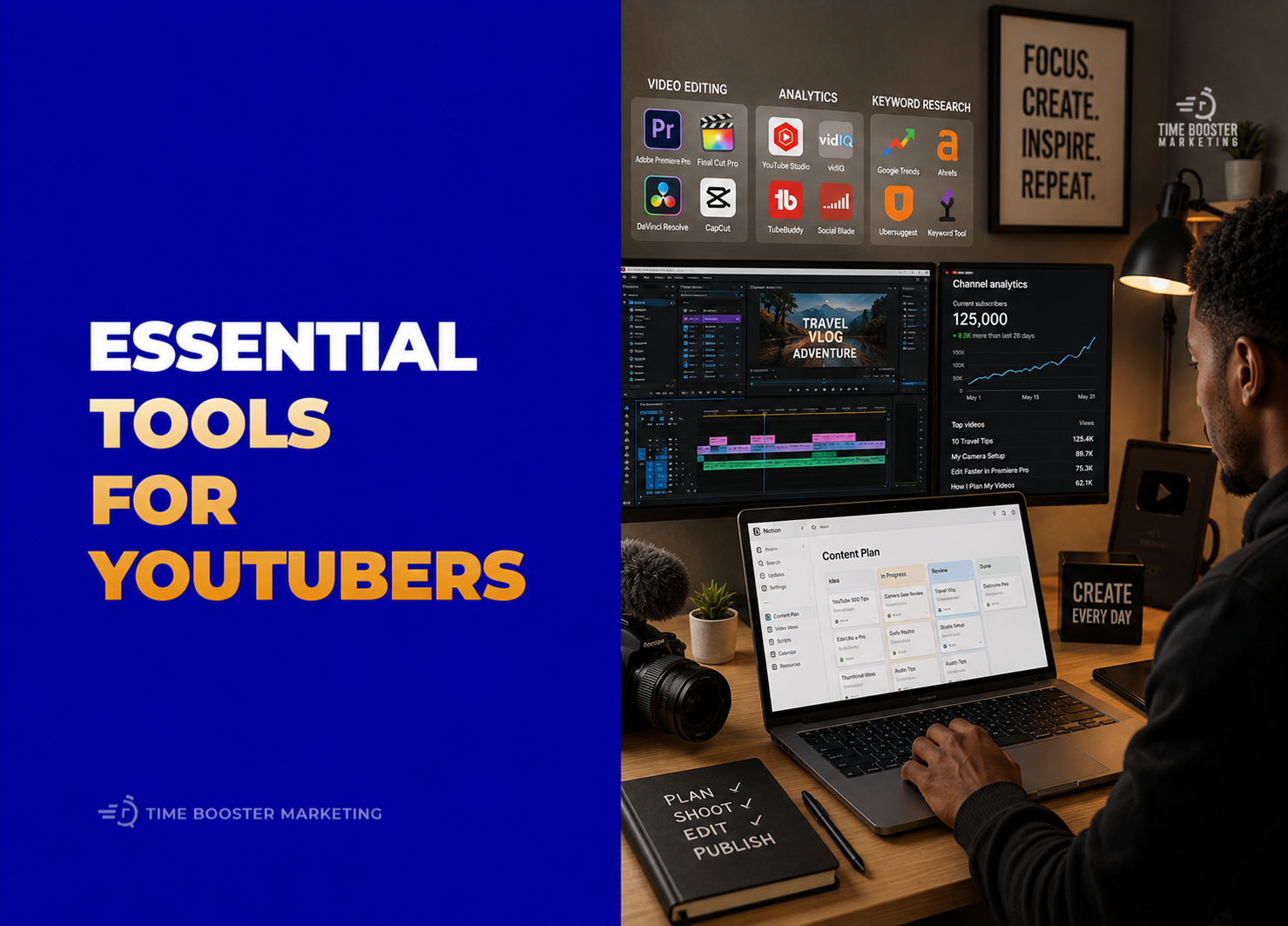
The best YouTube tool stack should help you do six things: edit better videos, design clickable thumbnails, research searchable topics, understand analytics, organize content ideas, and publish consistently.
1. YouTube Studio
YouTube Studio is the most important free tool for any creator because it is where you upload videos, manage content, check analytics, respond to comments, review copyright issues, and control channel settings.
YouTube’s official Studio guide explains that creators use Studio to manage content, analytics, comments, subtitles, copyright, monetization, customization, and settings. If you ignore Studio, you are running your channel blindly. (support.google.com)
2. YouTube Analytics
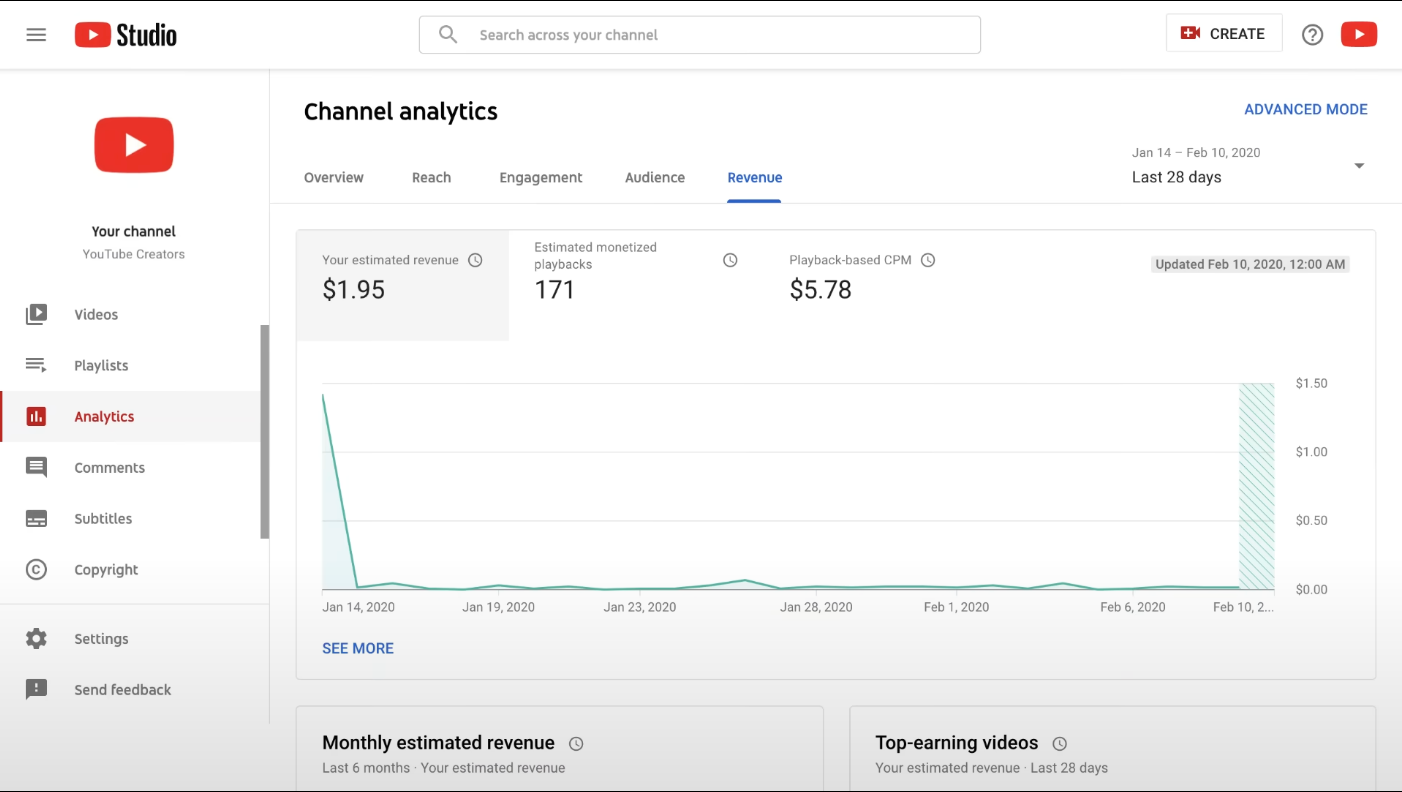
Inside YouTube Studio, YouTube Analytics helps you understand what is working.
Use it to track impressions, click-through rate, watch time, audience retention, traffic sources, returning viewers, and subscriber growth. YouTube explains that Analytics helps creators understand channel and individual video performance through key metrics and reports. (support.google.com)
A beginner should check Analytics weekly, not emotionally after every upload.
3. YouTube Trends Tab
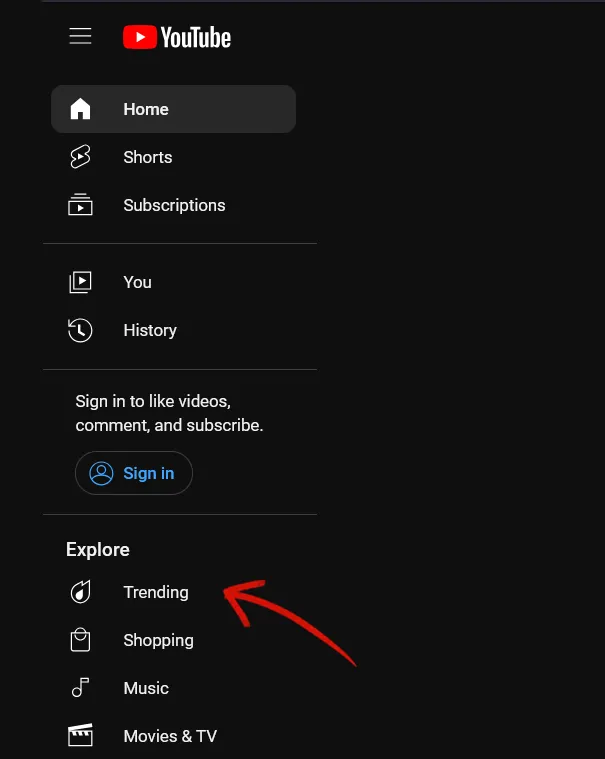
The Trends tab inside YouTube Analytics can help creators find topic ideas and content gaps. YouTube’s guide on exploring trends explains that the Trends tab can show search terms for Shorts related to topics your audience watched and may reveal gaps where viewers cannot find enough quality results. (support.google.com)
For African creators, this is useful because you can spot broad trends and then localize them for your market.
4. CapCut

CapCut is one of the easiest free editing tools for Shorts, TikTok-style videos, Instagram Reels, and beginner YouTube edits.
CapCut’s online editor page describes free online video editing with effects, templates, and YouTube video creation support. It is useful for creators who want fast editing, captions, vertical video formatting, and social-first content without learning complex software immediately. (capcut.com)
5. YouTube Create

YouTube Create is YouTube’s own editing app for creators. It is designed to help users edit videos with simple production tools and upload content more easily.
YouTube’s help page describes YouTube Create as an app that lets creators edit videos with helpful, easy-to-use production tools. It is especially useful for mobile-first creators who record and edit from a phone. (support.google.com)
6. DaVinci Resolve

DaVinci Resolve is a professional-level video editing tool with a free version.
Blackmagic Design describes the paid Studio version as including extra advanced features, while the free version is available for download and is powerful enough for serious editing, color correction, audio work, and longer YouTube videos. (blackmagicdesign.com)
Use it when you are ready to move beyond simple mobile editing.
7. OBS Studio
OBS Studio is a free, open-source tool for screen recording and live streaming.
It is ideal for tutorials, gaming videos, webinars, software walkthroughs, online classes, reaction setups, interviews, and livestreams. OBS describes itself as free and open-source software for video recording and live streaming. (obsproject.com)
8. Audacity

Audacity is a free, open-source audio editor and recorder.
Use it to clean voice recordings, reduce noise, edit podcast-style audio, prepare voiceovers, and improve sound quality before adding audio to your video. Audacity’s official download page describes it as an easy-to-use, multi-track audio editor and recorder for Windows, macOS, GNU/Linux, and other operating systems. (audacityteam.org)
9. Canva

Canva is one of the most useful free design tools for YouTubers.
Use it for thumbnails, channel banners, end screens, social posts, community graphics, title cards, and presentation visuals. Canva’s pricing page shows a free plan alongside paid plans, with premium features depending on subscription level. (canva.com)
For thumbnails, do not rely only on templates. Use clear faces, strong contrast, short text, and a visual promise that matches the video.
10. Photopea
Photopea is a free browser-based photo editor.
It is useful when you need more advanced thumbnail editing, cutouts, layer work, PSD-style editing, image cleanup, or graphic adjustments without installing Photoshop. Photopea presents itself as a free online photo editor that works directly in the browser. (photopea.com)
11. Pexels
Pexels offers free stock photos and videos.
Its license page says photos and videos can be downloaded and used for free, with some restrictions such as not selling unaltered copies as standalone products. This makes it useful for B-roll, background visuals, mood shots, and supporting footage, but creators should still read license rules carefully. (pexels.com)
12. Pixabay

Pixabay provides royalty-free images, videos, audio, and other media.
Pixabay’s license summary describes it as a community sharing royalty-free images, video, audio, and other media. Use it for background music, stock visuals, and sound effects, but always check whether a specific asset has restrictions before using it commercially. (pixabay.com)
13. Google Trends
Google Trends helps creators compare search interest and spot rising topics.
Google’s Trends Help explains that users can compare search terms, and Google’s Search Central Blog notes that Google Trends can provide insights into what people are searching for on Google and YouTube. This is useful when deciding between two video topics. (support.google.com, developers.google.com)
14. Google Keyword Planner
Google Keyword Planner is built for Google Ads, but YouTubers can use it to understand search demand around topics.
Google says Keyword Planner helps users discover new keywords and view estimates of searches and costs. For creators, this can help validate whether people search for topics such as “how to start a business in Cameroon,” “YouTube SEO,” or “WhatsApp marketing.” (support.google.com)
15. vidIQ Free
vidIQ is a YouTube growth and research tool with a free tier.
Its pricing page says the free tier includes limited access to popular tools, while paid plans unlock more advanced research, ideation, and channel growth features. Use the free version for topic ideas, basic optimization checks, and early channel research, but do not depend on tool scores more than audience behavior. (vidiq.com)
16. TubeBuddy Free
TubeBuddy also offers a free starting plan for YouTube creators.
Its free page positions TubeBuddy Free as a first step for creators, while its site describes TubeBuddy as a YouTube SEO and creator workflow toolkit. Use it for basic workflow support, keyword checks, and optimization ideas, but remember that free plans usually have limits. (tubebuddy.com)
17. Google Drive
Google Drive helps you store scripts, raw footage, thumbnails, brand assets, sponsor files, music, and exports.
Google’s Drive documentation explains that users can upload, create, organize, share, and search files. For creators, Drive prevents the common problem of losing scripts, thumbnails, and video assets across phones, laptops, WhatsApp, and flash drives. (support.google.com)
18. Google Docs

Google Docs is useful for scripting.
Write intros, outlines, interview questions, sponsor talking points, voiceovers, captions, and descriptions before filming. A simple script structure can include hook, promise, key points, examples, conclusion, and next video recommendation.
A creator who scripts even lightly usually speaks more clearly than one who presses record with no plan.
19. Google Sheets
Google Sheets is useful for your content calendar and analytics tracker.
Track video idea, keyword, filming date, upload date, thumbnail status, title options, views after 7 days, retention, CTR, and subscribers gained. This helps you improve based on patterns instead of emotion.
For small creators, a simple spreadsheet can replace expensive creator management software.
20. Google Calendar
Google Calendar helps creators stay consistent.
Use it to schedule filming days, editing blocks, upload deadlines, Shorts batches, livestreams, sponsorship due dates, and analytics reviews. Consistency becomes easier when YouTube work is placed on a calendar instead of left to motivation.
The Best Free Tool Stack for Beginners
A practical beginner stack could look like this:
Use YouTube Studio for publishing and analytics.
Use CapCut or YouTube Create for mobile editing.
Use Canva for thumbnails.
Use Google Trends, Keyword Planner, and YouTube Trends for topic research.
Use Google Drive, Docs, Sheets, and Calendar for organization.
Use Audacity if your audio needs cleanup.
Use OBS Studio if you record tutorials, livestreams, or screen content.
Use DaVinci Resolve when you are ready for deeper editing.
This stack is enough to build a serious channel before paying for advanced software.
Free Tools Are Enough, but Strategy Still Matters
Free tools will not save a weak channel strategy.
A good thumbnail tool cannot fix a boring topic. A keyword tool cannot fix a video that viewers abandon after 20 seconds. A powerful editor cannot fix unclear storytelling. Analytics cannot help if you never review the data.
Use free tools to support a disciplined workflow: research the topic, script the idea, record clearly, edit tightly, design a clickable thumbnail, publish with strong metadata, study performance, then improve the next upload.
The creators who grow are not always the ones with the most expensive tools. They are the ones who use simple tools consistently and learn from every video.