
Gmail Tips Every Business Owner Should Know
For many business owners, Gmail is not just email.

It is where customer enquiries arrive, invoices are sent, proposals are negotiated, suppliers confirm orders, job applicants submit documents, partners share files, and clients ask urgent questions. If your inbox is disorganized, your business follow-up becomes disorganized too.
The problem is that most entrepreneurs use Gmail only at the basic level: read, reply, forward, delete, and search when something is lost. That is not enough when your business starts receiving more messages every day.
Gmail already includes tools that can help you organize communication, reduce repetitive work, schedule responses, track tasks, and connect email to your wider business workflow. Google’s Gmail Help Center lists features for sending email, organizing messages, scheduling events, using Chat, managing attachments, and connecting other tools inside Gmail.
1. Use Labels Like Business Departments
Labels are one of the simplest ways to organize Gmail.

Unlike traditional folders, Gmail labels can be applied to messages without hiding them in only one place. Google’s label guide explains that labels help organize emails into categories and that only you can see your labels.
For a business owner, useful labels include:
- New Leads
- Clients
- Suppliers
- Payments
- Invoices
- Follow Up
- Staff
- Partnerships
- Urgent
- Waiting for Reply
The goal is not to create hundreds of labels. The goal is to make important messages easier to find and act on.
A real estate agency could use labels for “Rental Leads,” “Buyers,” “Land Enquiries,” and “Documents Pending.” A training center could use “Registrations,” “Corporate Clients,” “Payment Pending,” and “Certificate Requests.”
2. Create Filters to Automate Inbox Sorting
Filters are where Gmail becomes more powerful.
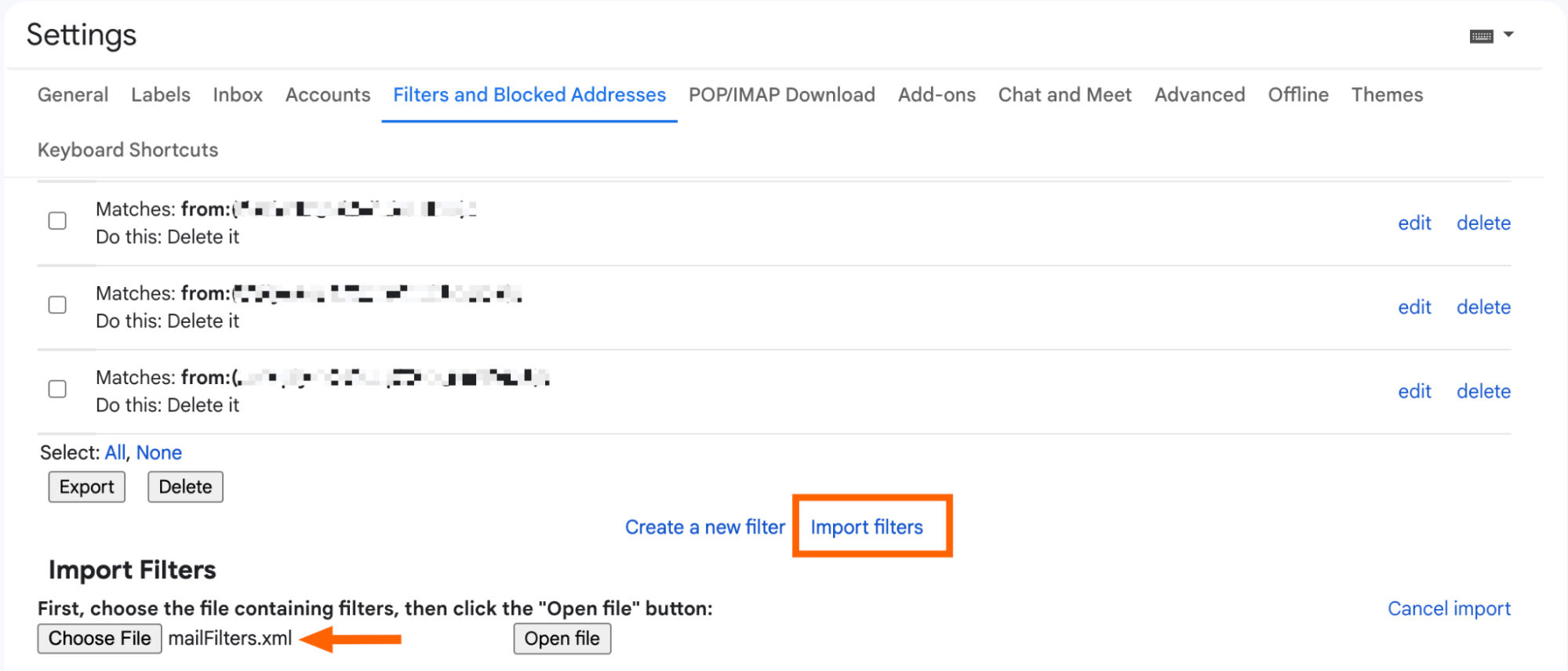
Google’s official guide on creating rules to filter emails explains that filters can automatically label, archive, delete, star, or forward incoming messages based on criteria you choose.
For example, you can create filters that:
- label all emails from a supplier
- star emails containing “invoice”
- send website form enquiries to a “New Leads” label
- archive newsletter emails automatically
- forward job applications to an HR assistant
- mark payment confirmation emails as important
This saves time because you no longer rely on memory. Gmail sorts routine messages while you focus on decisions.
A good business inbox should not treat every email equally. A customer asking for a quotation should not sit beside a random promotional newsletter with the same priority.
3. Use Scheduled Send for Professional Timing
Business owners often write emails late at night, early in the morning, or during weekends. That does not mean every message should be sent immediately.
Gmail’s Schedule Send feature allows users to schedule emails to send later. If you cancel a scheduled email before it sends, it becomes a draft again.
Use scheduled emails for:
- Monday morning proposals
- payment reminders
- follow-up messages
- meeting confirmations
- client onboarding emails
- supplier check-ins
- campaign announcements
This helps you work when convenient without disturbing clients at strange hours or appearing disorganized.
For Cameroon-based businesses dealing with diaspora clients, scheduling is especially useful because customers may be in different time zones.
4. Turn Emails Into Tasks
Many business owners lose opportunities because they read an email, promise to handle it later, then forget.
Instead of relying on memory, turn important emails into tasks. Google Tasks allows users to create tasks from Gmail and other Google Workspace products, then add details, subtasks, due dates, and notifications. Google explains this in its Google Tasks overview.
Use this for:
- quotation follow-ups
- client document requests
- supplier payment reminders
- project deadlines
- contract reviews
- interview scheduling
- customer complaints
A task is better than a mental reminder. It gives the email a next action.
5. Use Templates for Repeated Replies
If you type the same reply every week, turn it into a template.
Business owners often repeat messages about pricing, booking steps, payment instructions, delivery timelines, consultation availability, product information, or onboarding requirements. Gmail supports templates, and Google provides guidance on how to create templates in Gmail.
Examples of useful templates include:
- “Thank you for your enquiry”
- “Here are our service packages”
- “Documents required before we begin”
- “Payment confirmation received”
- “Proposal follow-up”
- “Appointment reminder”
- “We are reviewing your request”
Templates should not sound robotic. Customize the first line, customer name, and context before sending.
6. Use Gmail Search Like a Business Archive
Your inbox is often your business memory.
Instead of scrolling endlessly, use Gmail search operators. You can search by sender, date, attachment, phrase, label, subject, or keywords.
For example:
from:client@email.com invoice
has:attachment contract
subject:proposal
older_than:6m
label:Payments
This is especially useful when tracking old quotations, payment proof, supplier agreements, client complaints, or recruitment documents.
A business owner who knows how to search Gmail properly can recover information faster than a team that depends on WhatsApp screenshots and memory.
7. Use Calendar Scheduling Inside Gmail
Gmail is closely connected to Google Calendar.
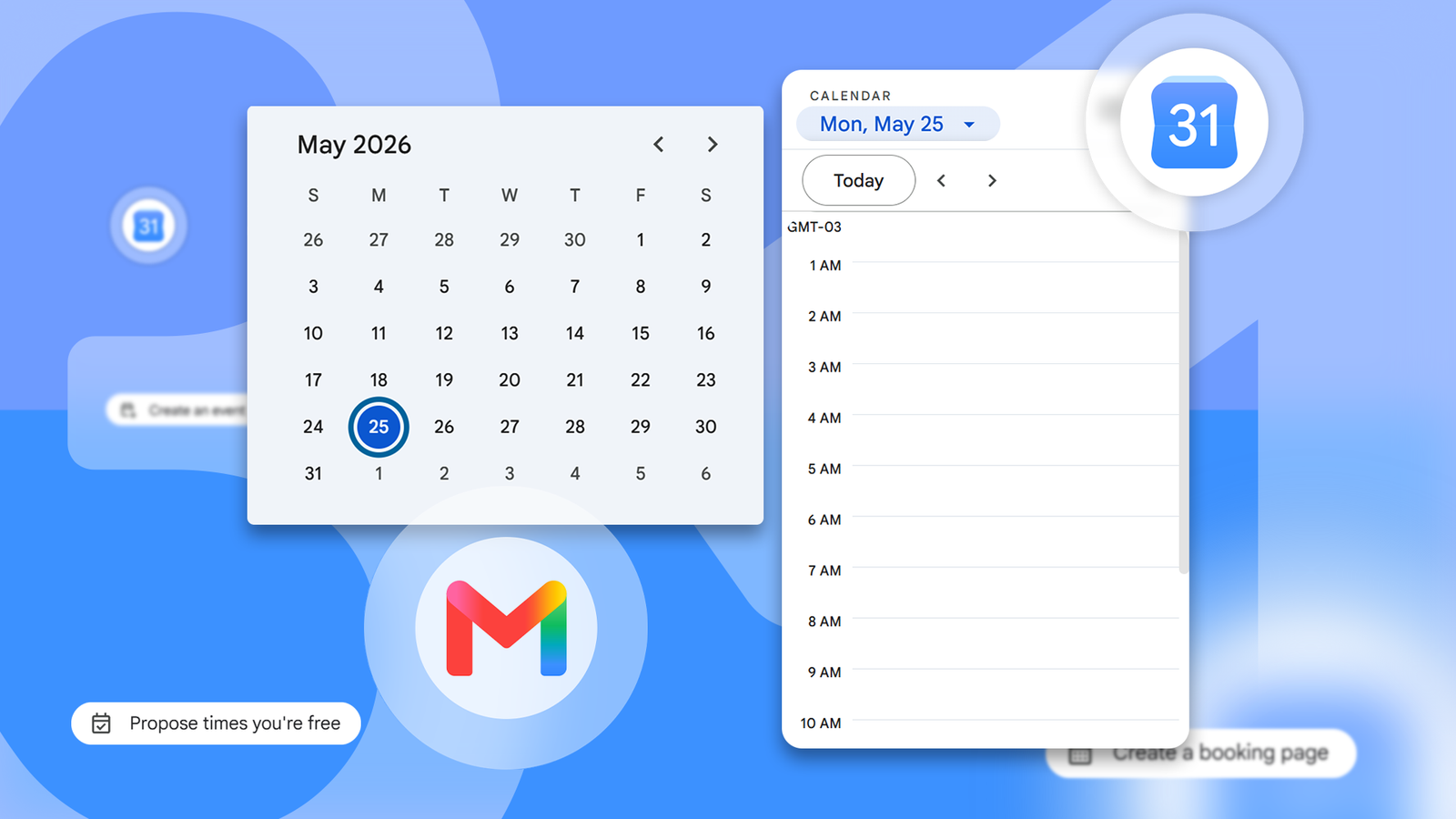
Google’s guide on scheduling events in Gmail explains that users can create Calendar events from Gmail messages, insert events or booking pages into messages, and offer meeting times depending on account type and available features.
This is useful for:
- sales calls
- consultations
- interviews
- supplier meetings
- project reviews
- client onboarding
- training sessions
Instead of sending five emails asking, “When are you available?” use Calendar scheduling options where available. It reduces back-and-forth communication.
8. Connect Gmail With Google Chat and Meet
For teams using Google Workspace, Gmail can become a communication hub.

Google’s Workspace Learning Center explains that the integrated Gmail experience can include email, direct messages, spaces, and meetings in one place. Its guide on the integrated Gmail experience describes how Gmail can connect email, Chat, spaces, and video meetings.
This helps when a customer email requires internal discussion.
Instead of forwarding the message to five people and creating confusion, your team can discuss the issue in Chat, assign next steps, and return to the customer with one clear response.
9. Use Mail Merge Carefully for Business Announcements
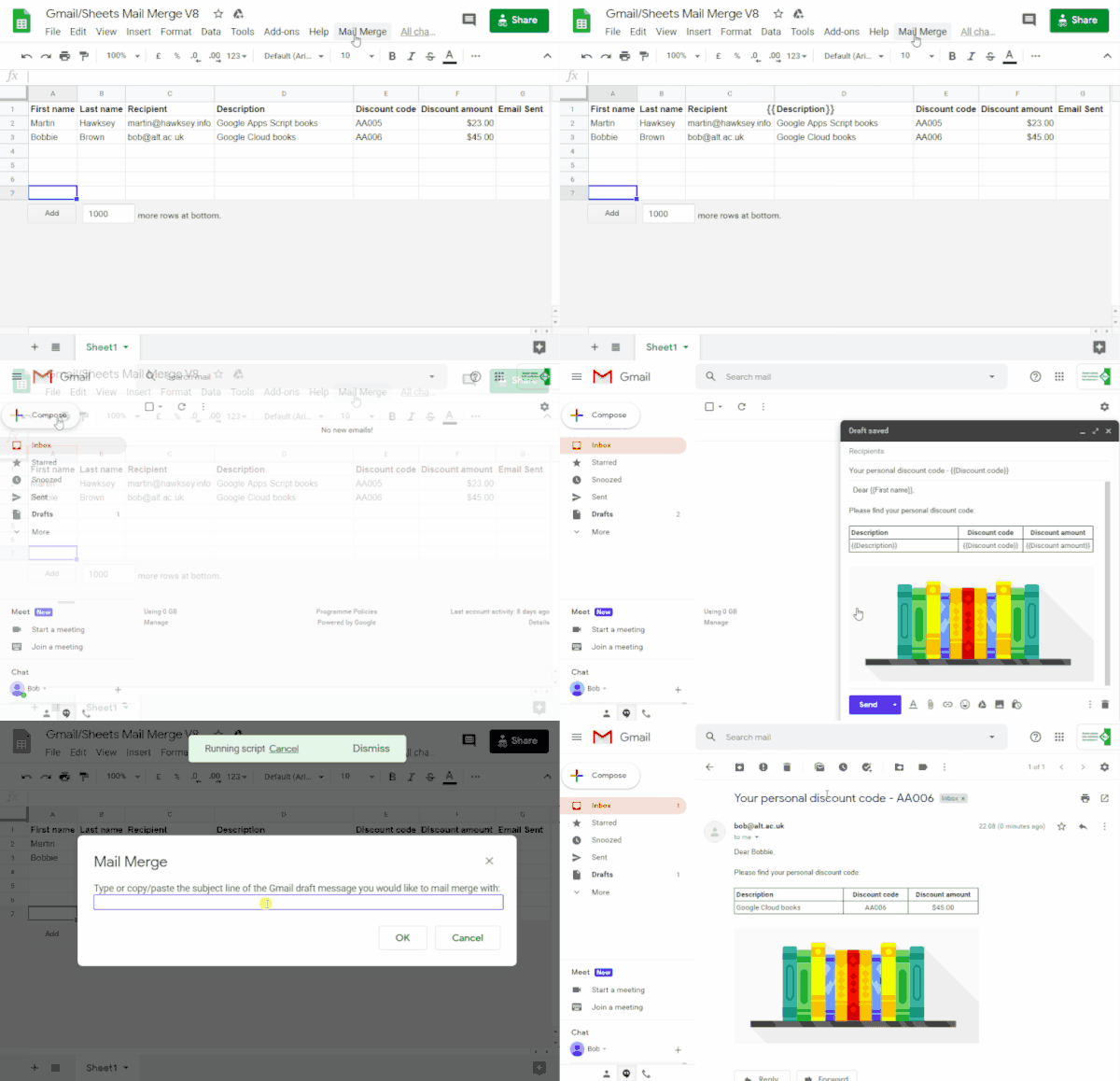
Gmail mail merge can help send personalized emails to a wider audience, such as announcements, newsletters, and campaign updates. Google’s mail merge guide explains that users can send personalized email campaigns and announcements to larger groups.
Use mail merge for:
- customer updates
- event announcements
- course reminders
- product launches
- service notices
- policy updates
Do not abuse it. Poorly targeted mass emails damage trust and increase unsubscribes or spam complaints. Segment your audience before sending.
A training center should not send the same message to past students, corporate clients, parents, and job applicants. Each audience needs a different message.
10. Use Workspace Marketplace Integrations With Caution
Google Workspace Marketplace offers apps and add-ons that can extend Gmail, Calendar, Docs, Sheets, and other Google tools. Google’s Marketplace guide explains that users can find and install apps to automate tasks and use Workspace products more efficiently.
Useful integrations may include CRM tools, project management apps, email tracking tools, scheduling systems, proposal software, and customer-support platforms.
But do not install every extension you see.
Before adding any tool, ask:
Does this app need access to sensitive emails?
Is the provider trustworthy?
Will my team actually use it?
Can I remove it later?
Does it create more productivity or more complexity?
For businesses handling client data, legal documents, payments, or health-related communication, privacy and access control matter.
11. Delegate Email Without Sharing Passwords
Some business owners give staff their Gmail password because they need help managing messages. That is risky.
Gmail supports delegation, allowing another person to read, send, and delete messages on your behalf without needing your password. Google’s email delegation guide explains how delegated access works and notes that personal Gmail accounts can add up to 10 delegates.
This is useful for assistants, customer-support staff, admin teams, and managers.
Never share your main password casually. Use proper delegation or a business email system with controlled access.
12. Build a Simple Daily Gmail Routine
Tools only work when habits support them.
A practical daily Gmail routine could look like this:
Morning: Check urgent client, payment, and operational emails.
Midday: Respond to new enquiries and assign tasks.
Afternoon: Follow up on proposals, invoices, and pending replies.
End of day: Clear labels, schedule tomorrow’s emails, and review tasks.
This prevents Gmail from becoming a constant distraction. You do not need to live inside your inbox all day. You need scheduled control.
Gmail Should Support the Business, Not Distract From It
Gmail is powerful because it sits at the center of business communication. But without a system, it becomes another source of stress.
Use labels to organize messages. Use filters to sort them automatically. Use scheduled send to control timing. Use templates to reduce repetitive typing. Use Tasks to prevent forgotten follow-ups. Use Calendar, Chat, Meet, and Workspace integrations to connect email with action.
For small-business owners, the goal is not inbox perfection. The goal is faster response, better follow-up, clearer records, and fewer missed opportunities.
When Gmail is organized, your business sounds more professional, your team works with less confusion, and customers receive the timely communication they expect.